YOUR DOCUMENTS. YOUR SPACE.
Keep personal
documents private.
Photos, PDFs and everyday files, together in one encrypted vault. Unlock with your pattern or Face ID. Keep your vault on your iPhone or in iCloud Drive.
- Encrypted on your device
- No app account needed
For iPhone In development
A SIMPLE EVERYDAY ROUTINE
Add it. Find it. Lock it.
Create a vault, choose a pattern and pick where to save it. Then make it yours.
- 01
Add what matters.
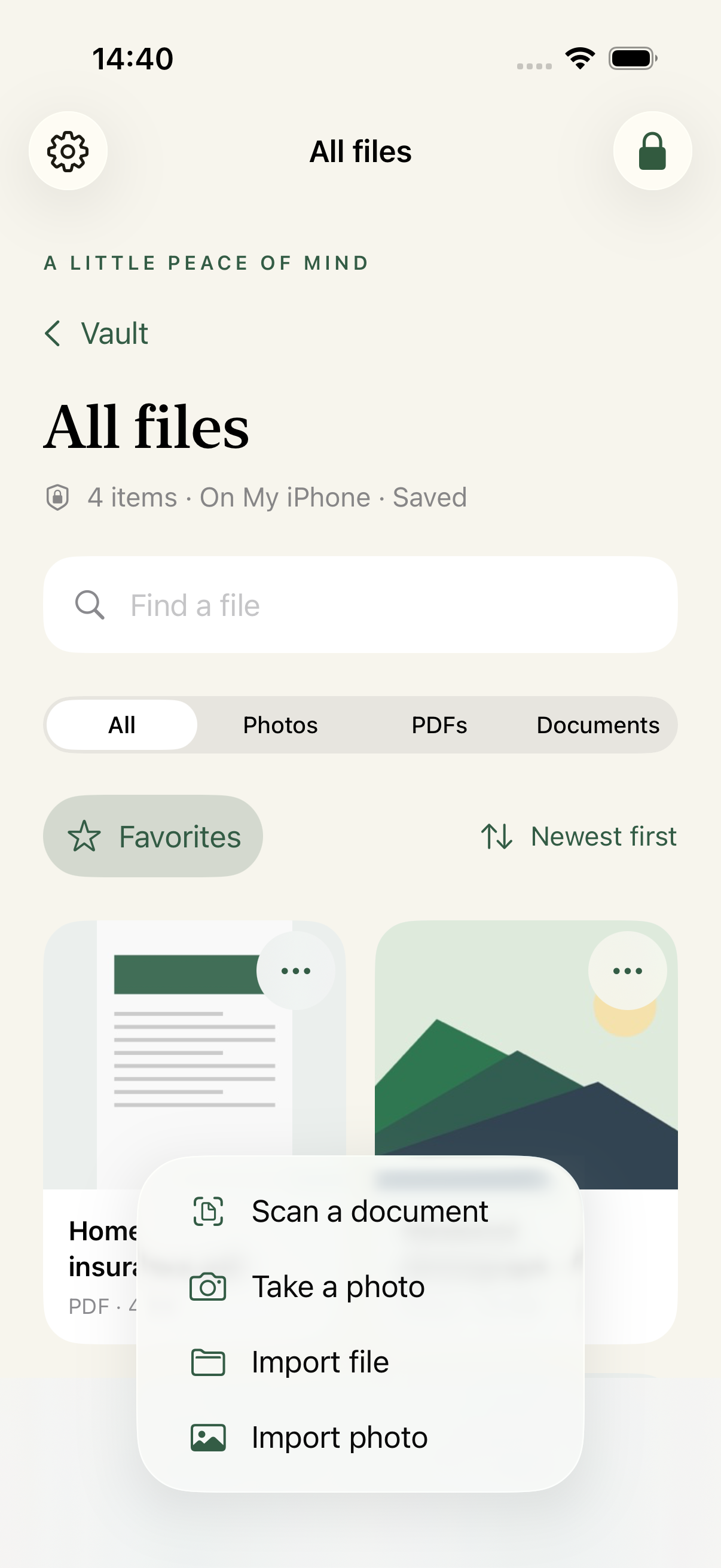
Select photos or files together, take a private photo, or scan paper into a PDF. Imported originals stay where they are.
- 02
Keep it together.
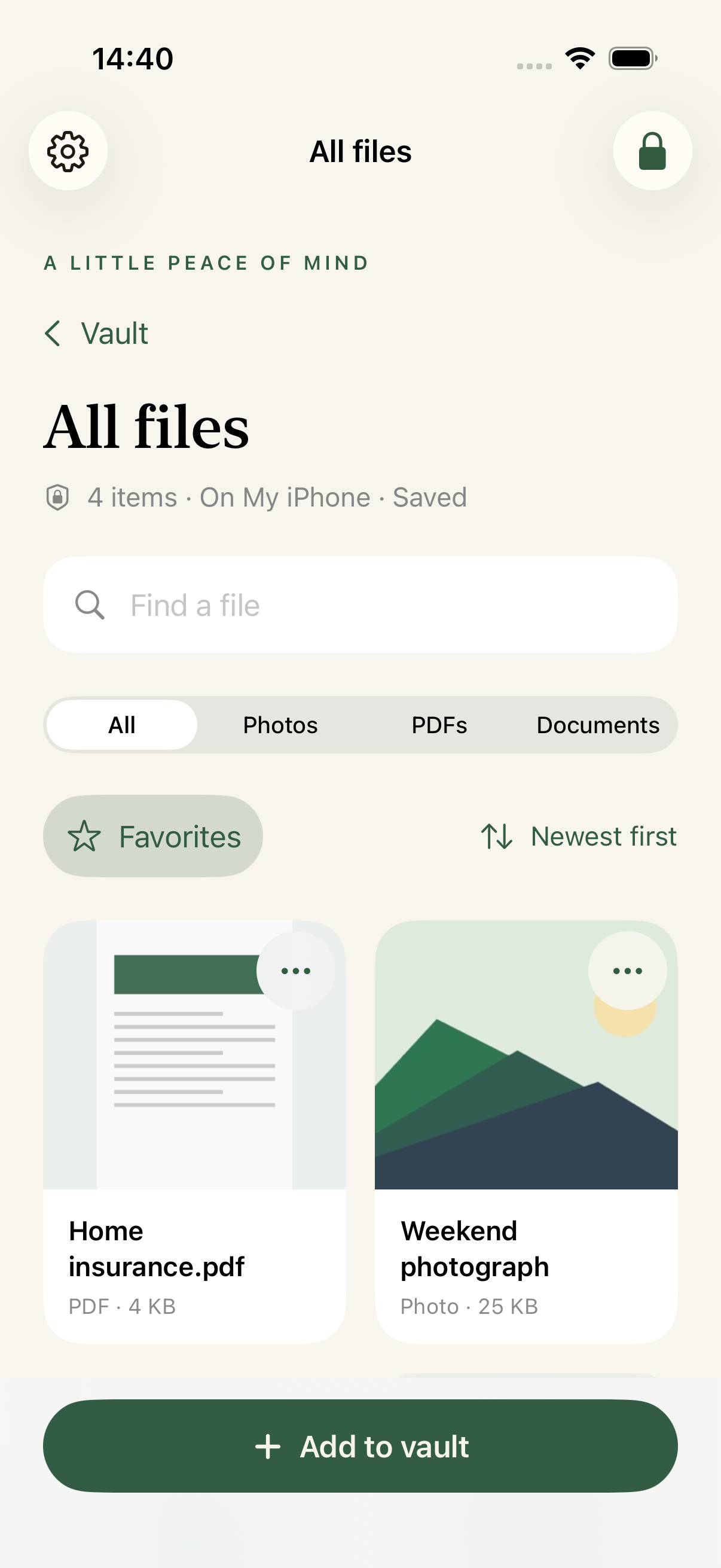
See your files in one library. Use folders, favorites and private notes to keep things easy to find.
- 03
Lock and carry on.
Your vault locks when you leave the app. Open it with your pattern, or enable Face ID on a supported iPhone.
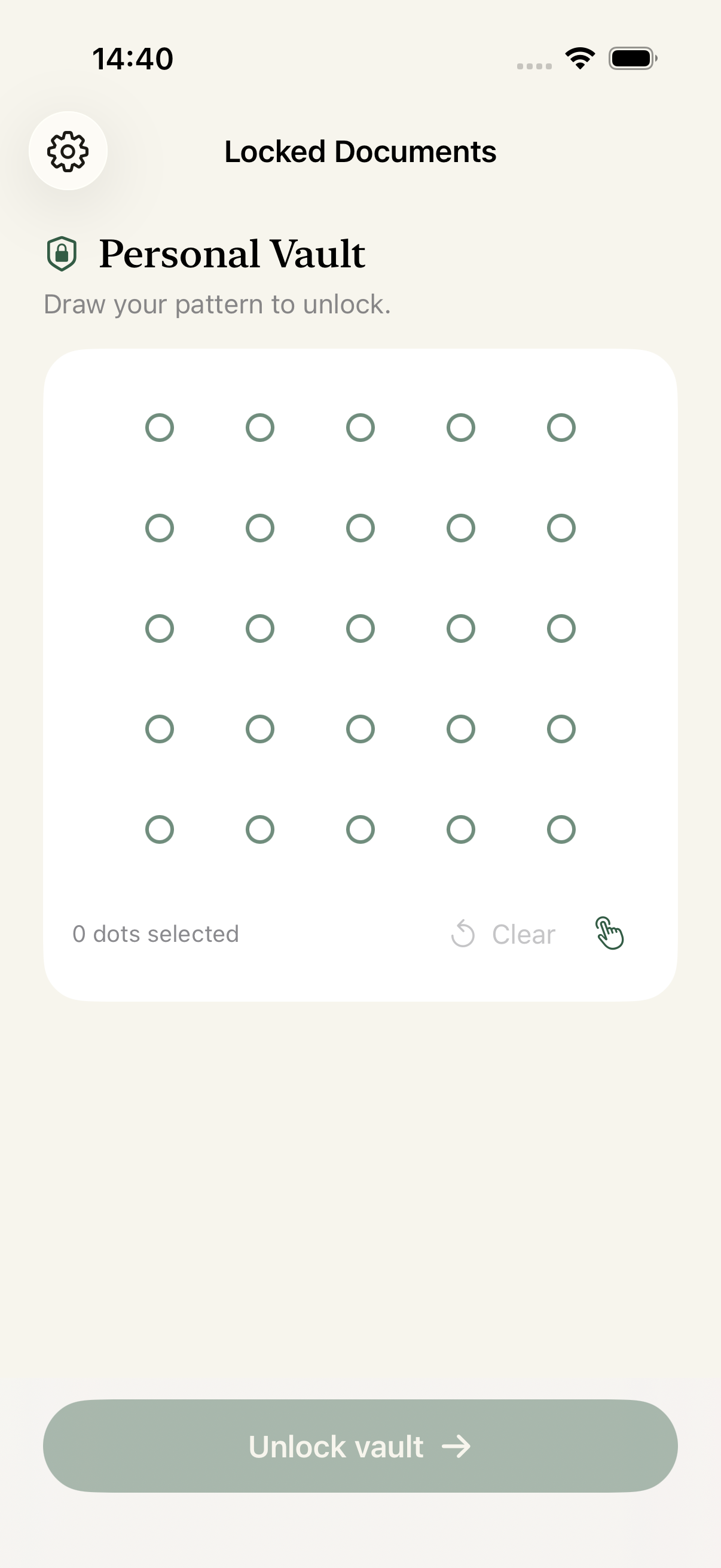
Actual app screens with sample content. Swipe through the steps on a small screen.
THE THINGS YOU KEEP
Paperwork, photos
and just-in-case files.
A receipt you might need. An important letter. A copy of your travel documents. Keep them close, in one private place.
View photos, PDFs and text in the app. Office files, ZIPs, audio and other regular files are stored without a preview. Save a copy to Files when you want to use a file elsewhere.
Paper can come along, too.
Scan multiple pages
with your camera and save them as one PDF.
Up to 20 MiB per file and 200 items per vault.
Private, with the details explained.
Your files are encrypted before the vault is saved. Choose your storage location, and keep control of the originals you import.
Read how privacy worksBEFORE YOU GET STARTED
Good to know.
Clear answers about your vault,
backups and your
pattern.
Where does my vault live?
Choose On My iPhone or a folder in iCloud Drive when you create your vault. Changes save to that same encrypted vault file. iCloud availability and syncing are handled by Apple’s Files service.
Is iCloud the same as a backup?
iCloud holds your working vault file. A manual backup is a separate encrypted snapshot you export and keep somewhere safe. It restores the contents saved at that moment, using the pattern or recovery phrase that protected the backup when it was created.
Can I save a file back to Files?
Yes. Open a file and choose Save a copy. This saves its original contents to a location you choose in Files. The exported copy is outside your vault’s encryption, and the item in your vault stays there.
What if I forget my pattern?
An optional 24-word recovery phrase lets you unlock your encrypted vault and choose a new pattern. Set it up while you can still unlock the vault, and save it separately. Without a usable pattern, recovery phrase or unlocked device, we cannot recover your files.
Does importing remove the original?
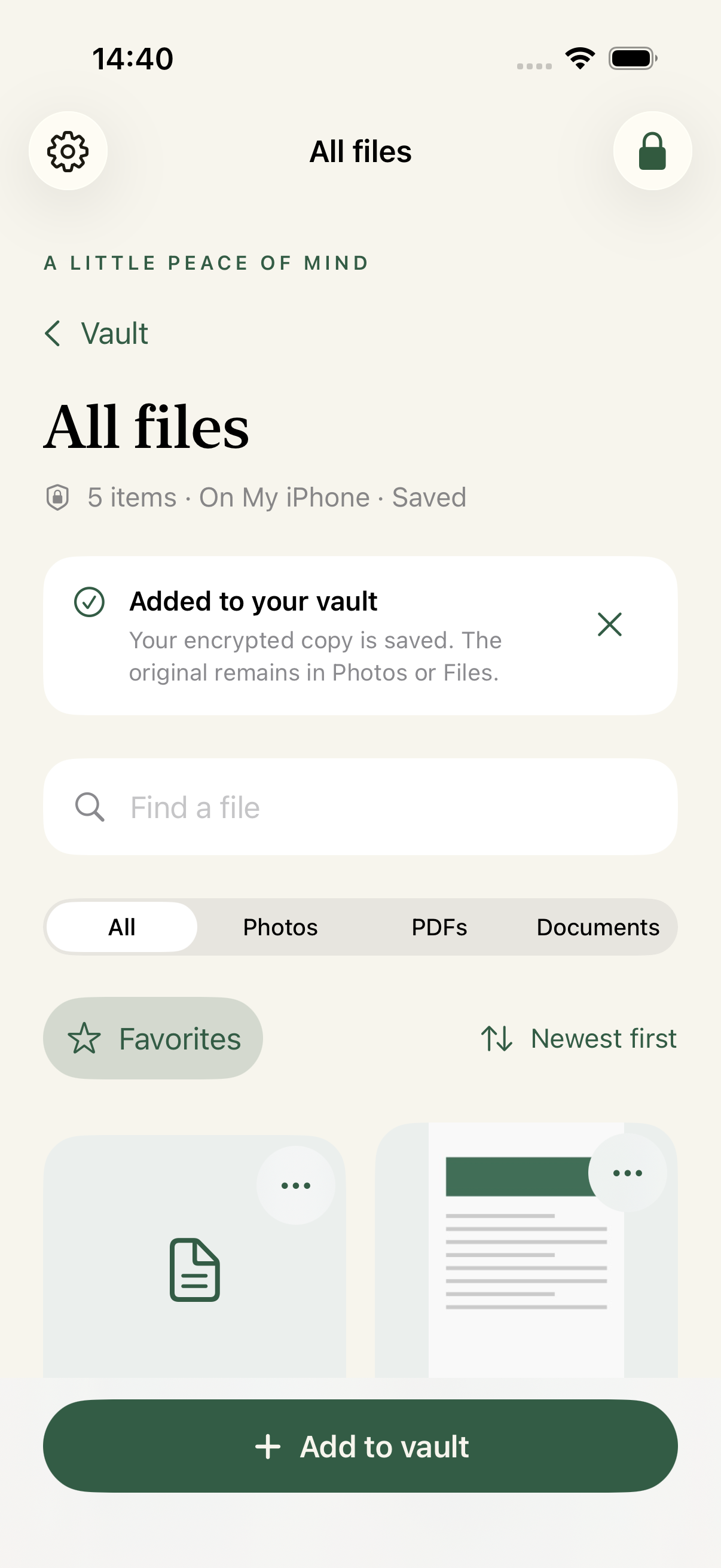
No. Importing makes an encrypted copy inside your vault. The original remains in Photos or Files until you choose to remove it there.